I’m finally using my giant phone with one thumb, and it feels like magic
I’ve always loved big phones, so much so that I won’t settle for less than a 6.7-inch screen.
I really am the type to use every pixel for split screen, floating windows, binge-watching movies, and dragging and dropping across apps. But my hands don’t agree with what my eyes appreciate.
It’s been a week spent with my new gaming powerhouse, and one-handed use has been a stretch (literally). I’d catch myself cracking fingers and rolling my wrists after long sessions with the 198g phone.
Thankfully, a navigation overlay app has taken over my heavy lifting. Without it, I’d probably avoid certain interactions altogether. Here’s why I’m never deleting it.

I point and click from the bottom up
It feels like using a mini PC
I enjoy experimenting with different ways of using devices. But if you’ve ever stuck to one setup for long enough, you’ll build habits around it.
I’m used to mouse pointers on computers, so I’ve never considered bringing them to mobile use.
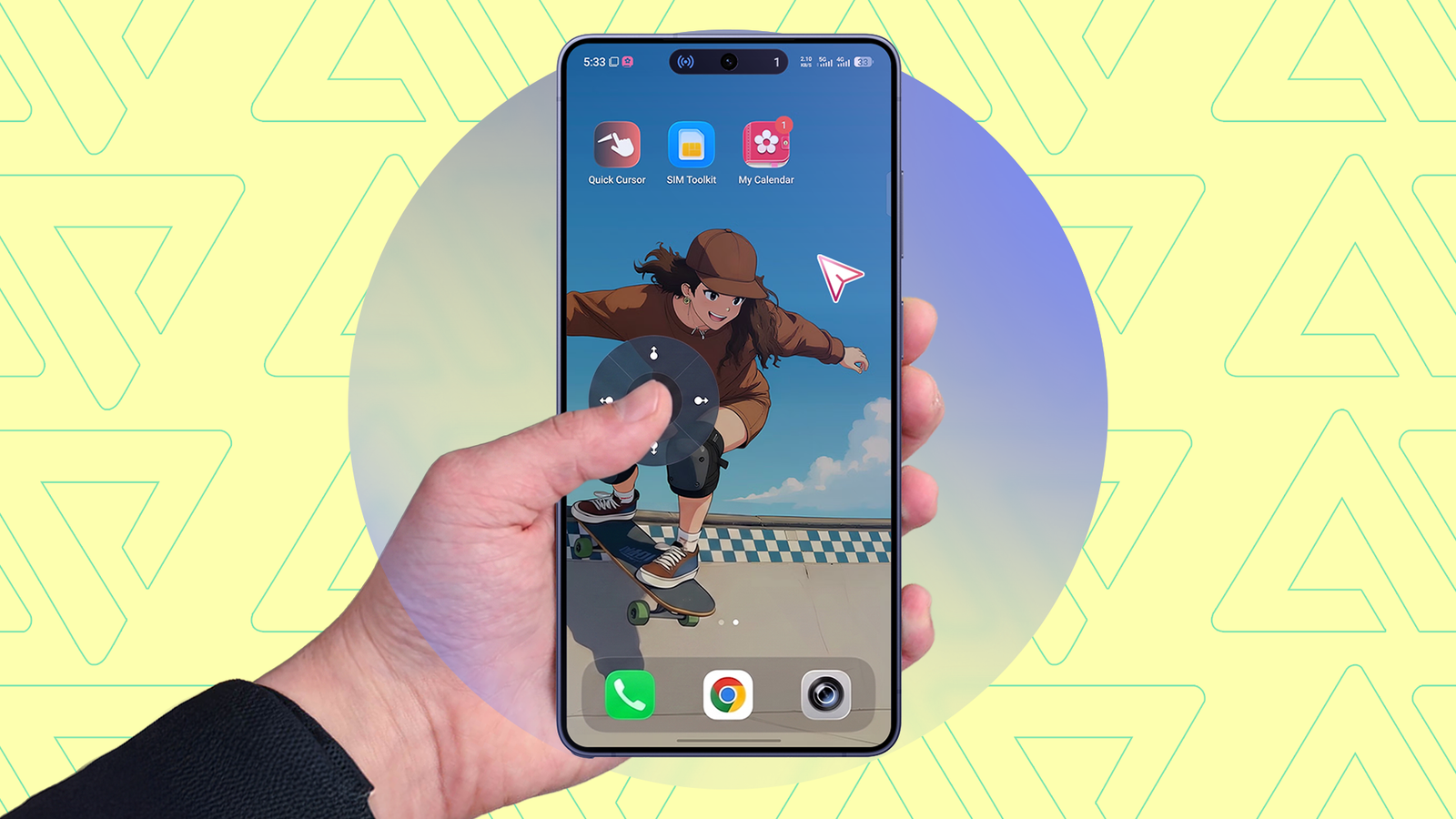
Quick Cursor made the crossover natural. I drag a small nub or tracker from the bottom side of the screen, and a pointer roughly 150px above it travels the distance for me.
I can also tap to click, like with a mouse, or long-press to perform specific actions like expanding Quick Settings and taking screenshots.
Initially, I was concerned about it clashing with gesture navigation. Thankfully, the app lets me set an invisible trigger zone. The default size is 48px. I cranked mine up to 120px and shifted the position to the bottom edges of the navigation bar.
Then I shortened its length. This way, I could still swipe up to see recent apps and the long-press navigation bar to use Circle to Search. You can restrict the tracker to your favorite side instead of using both.
The app itself runs through Android’s accessibility service, which means setup takes a few steps. After installing, I had to grant it permission. Go to Settings > Accessibility > Accessibility > Quick Cursor, then toggle it on.
Android warned me that it could view and control my screen and perform actions on my behalf. What reassured me is that the app is offline only and makes no network requests. There’s no server address coded into it to send data to. I like that it’s upfront from the first screen.
I make sure my pointer looks on point
It’s my secret to a pixel-perfect experience


Cursor design is limited to three options unless you pay for the Pro plan. Arrow 3 is my favorite of the free options. It’s an outlined triangle rather than a solid arrow, which means I can see targets through it.
The tracker isn’t left out of customization either. I prefer to keep its actions set to always be visible. This setting adds four directional buttons surrounding the central drag nub.
They go up, down, left, and right. I sometimes prefer tapping them to scrolling. My thumb barely has to move.
I’m surprised by how much is free on Quick Cursor. I would have gated the trigger position adjustment alone behind a subscription.
The Pro version unlocks it, along with tracker actions, edge actions with the cursor, a floating tracker mode that keeps the nub permanently on screen like a chat head, deeper visual theming, and more.
It’s a meaningful upgrade, but the free version is complete enough that I don’t feel shortchanged. If you want to upgrade, it costs $2 for a one-time lifetime license, or $1 per year with a 30-day free trial.
I don’t let Android sabotage my setup
It has hidden settings killing my productivity


As aforementioned, Quick Cursor relies on Android’s accessibility service. It has to run in the background to work properly. However, many OEM skins are strict about background processes.
Although Android 16 automatically optimized the app’s battery use, I’ve yet to see it interfere with how it functions. It may pause or close to save power and throttle performance on your device.
You can turn off battery optimization directly from the app. Tap Lock app in memory. Then select Battery Optimization Settings to enter your phone’s Battery Optimization menu. Find Quick Cursor under All apps and change its status to Not optimized.
Another trick is to lock it in place in the Recent apps menu. Swipe up from the bottom of your screen to see all open programs. Find Quick Cursor and tap the drop-down arrow beside it if your device runs Android 16.
Long-press the app icon if it runs a lower software version. Tap Lock and the system won’t close the app even if you clear all recent tasks simultaneously.

I ditched my laptop for a week and used an Android tablet for work: Here’s how it went
Can a tablet replace a computer?
Reach for the top without struggles
I’ve had my fair share of hardware mishaps lately. It’s made me creative in turning available devices into reliable backups.
As virtual input methods become increasingly part of my routine, I see Quick Cursor fitting in with others, like Appground IO’s tool.
If a corner of my screen were to take a hard fall and lose touch sensitivity, I could stall the repair until payday and easily navigate the dead zones. Hopefully, that never happens.
link