RaspController is my go-to Android app for tinkering with my Raspberry Pi
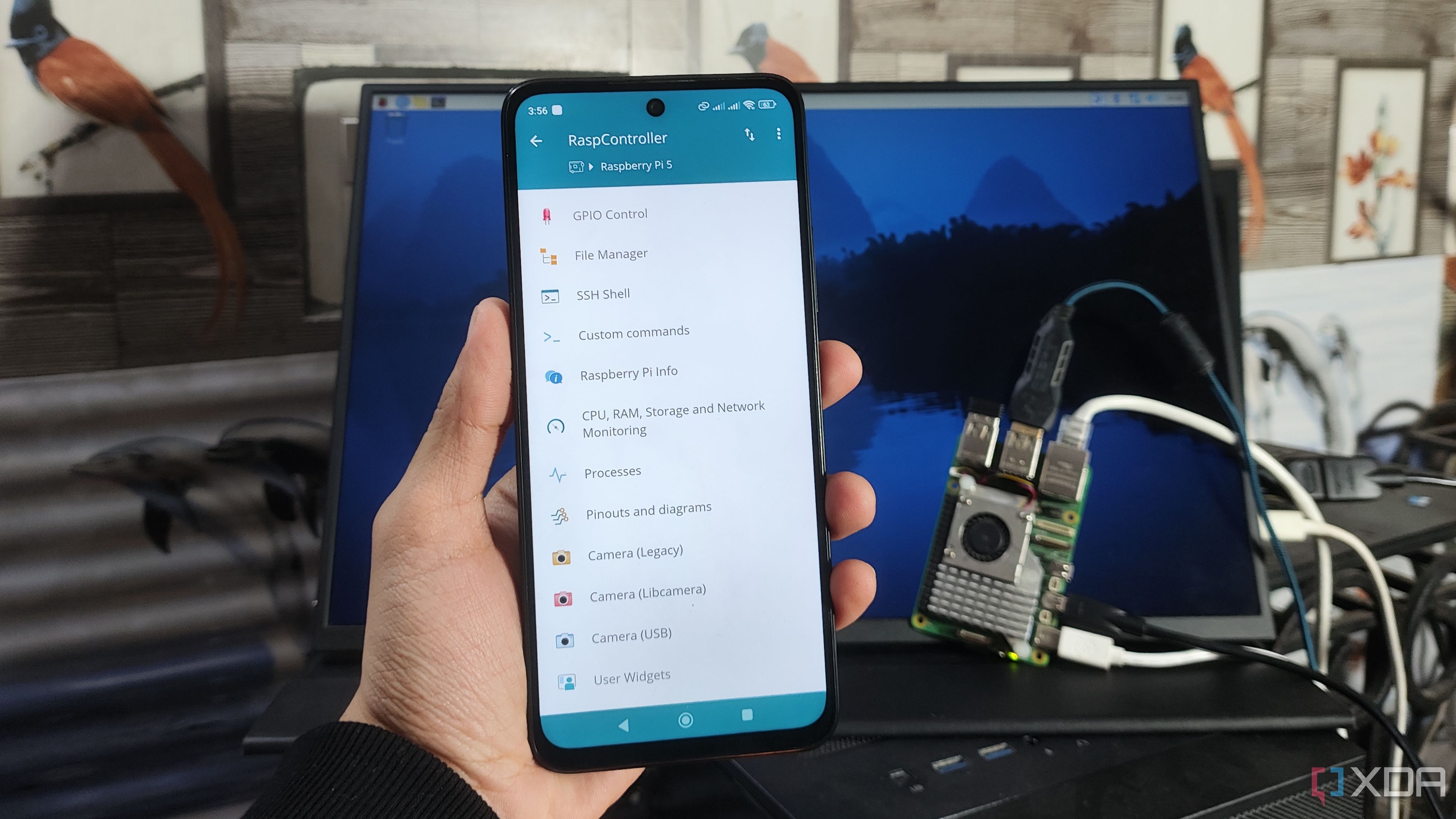
If you’ve checked the application store of your smartphone, you’ll find a host of tinkering apps. But when it comes to the Raspberry Pi, few apps can match the utility of RaspController, which is equipped with an arsenal of tools to enhance your project-building experience with the ultra-popular SBC lineup. If that sounds intriguing, here’s a quick guide to help you get this neat app working on your setup.

Related
What’s RaspController?
And why should you check it out?

True to its name, RaspController is an application designed to monitor, access, and control your Raspberry Pi over a network. Once you pair the app with your lean, mean, green board, you can access the files, monitor the resource consumption, and check the outputs of the sensors and cameras connected to the SBC. Plus, if you’ve got the necessary packages installed on your Raspberry Pi, you can send wake-on-LAN packets over the network to activate it remotely.
For tinkerers who often pair extra devices to the Raspberry Pi’s GPIO pins, you can consult the pinouts and wiring diagrams inside RaspController. As if that’s not enough, you can even use the app to execute shell commands on the SBC, making it perfect for a headless Raspberry Pi setup.
How to set up RaspController?
It’s quite easy, actually
So long as you’ve got the IP address of the Raspberry Pi, you can follow these steps to get RaspController working with the SBC:
-
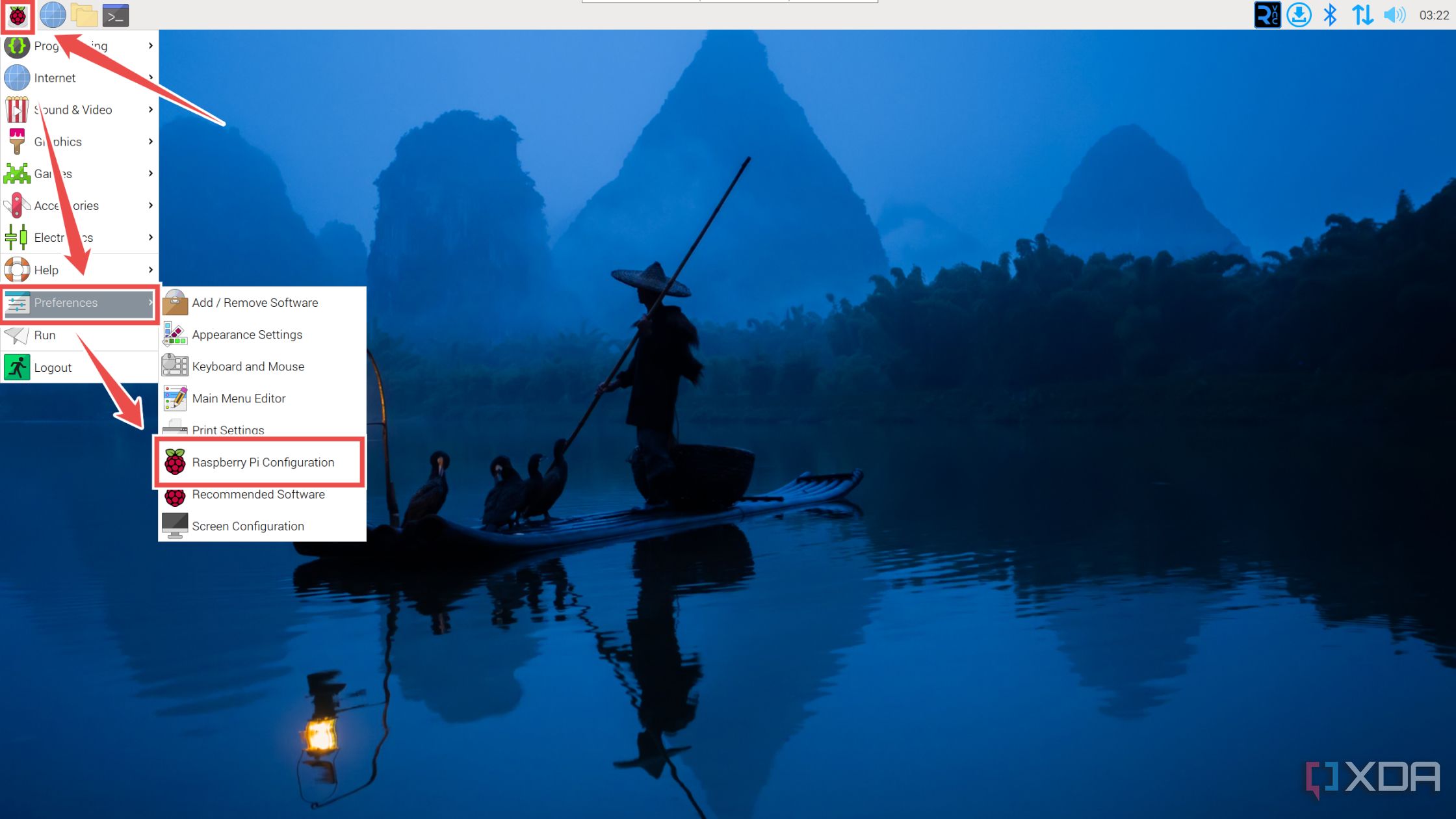
Click on the Raspberry (Start) button, hover the cursor over the Preferences tab, and choose Raspberry Pi Configuration.
-
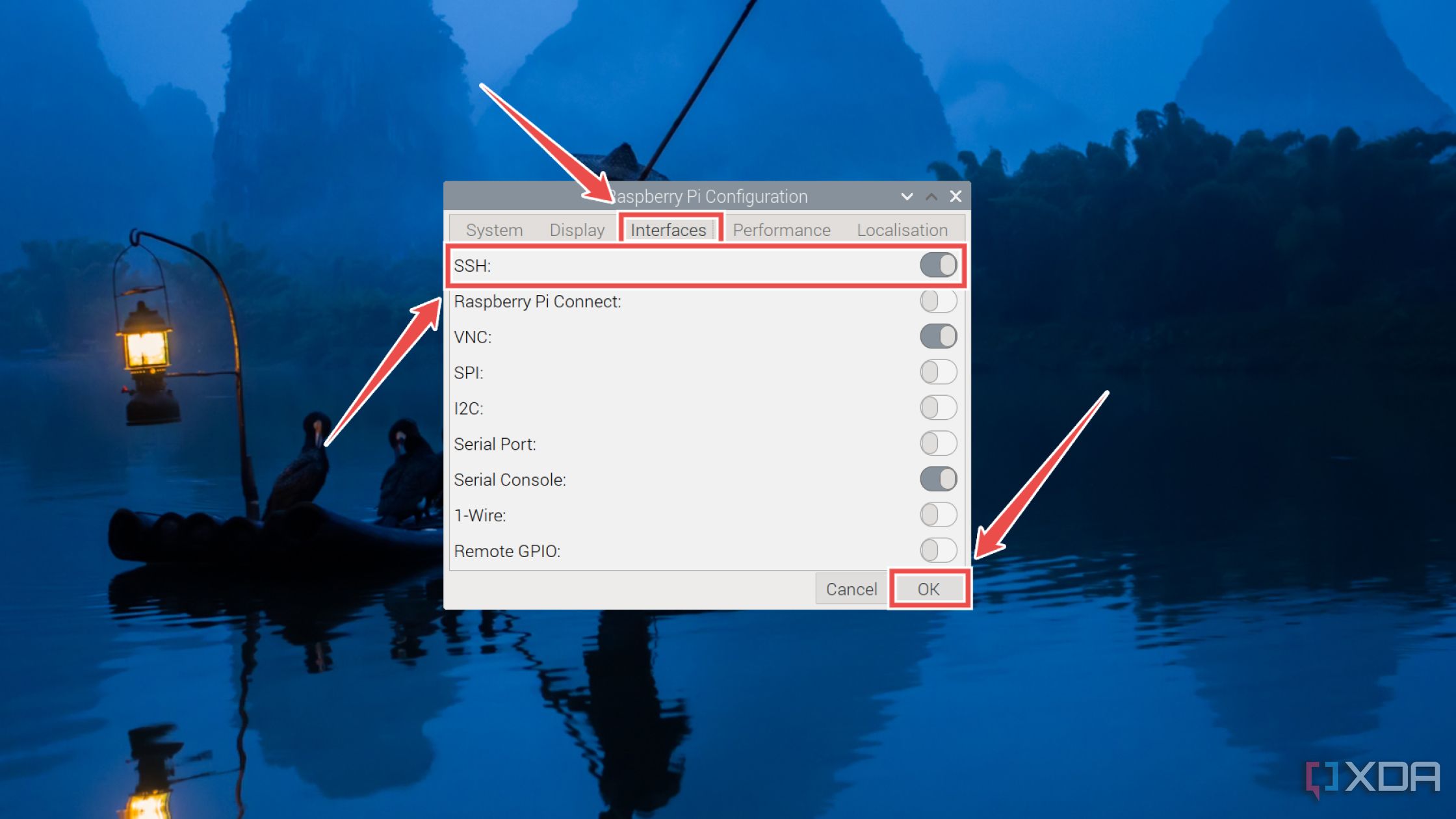
Navigate to the Interfaces tab, enable the toggle next to SSH, and hit OK.
- Switch to your smartphone and, depending on its OS, head to the official Google Play or App Store links to download and install RaspController.
-
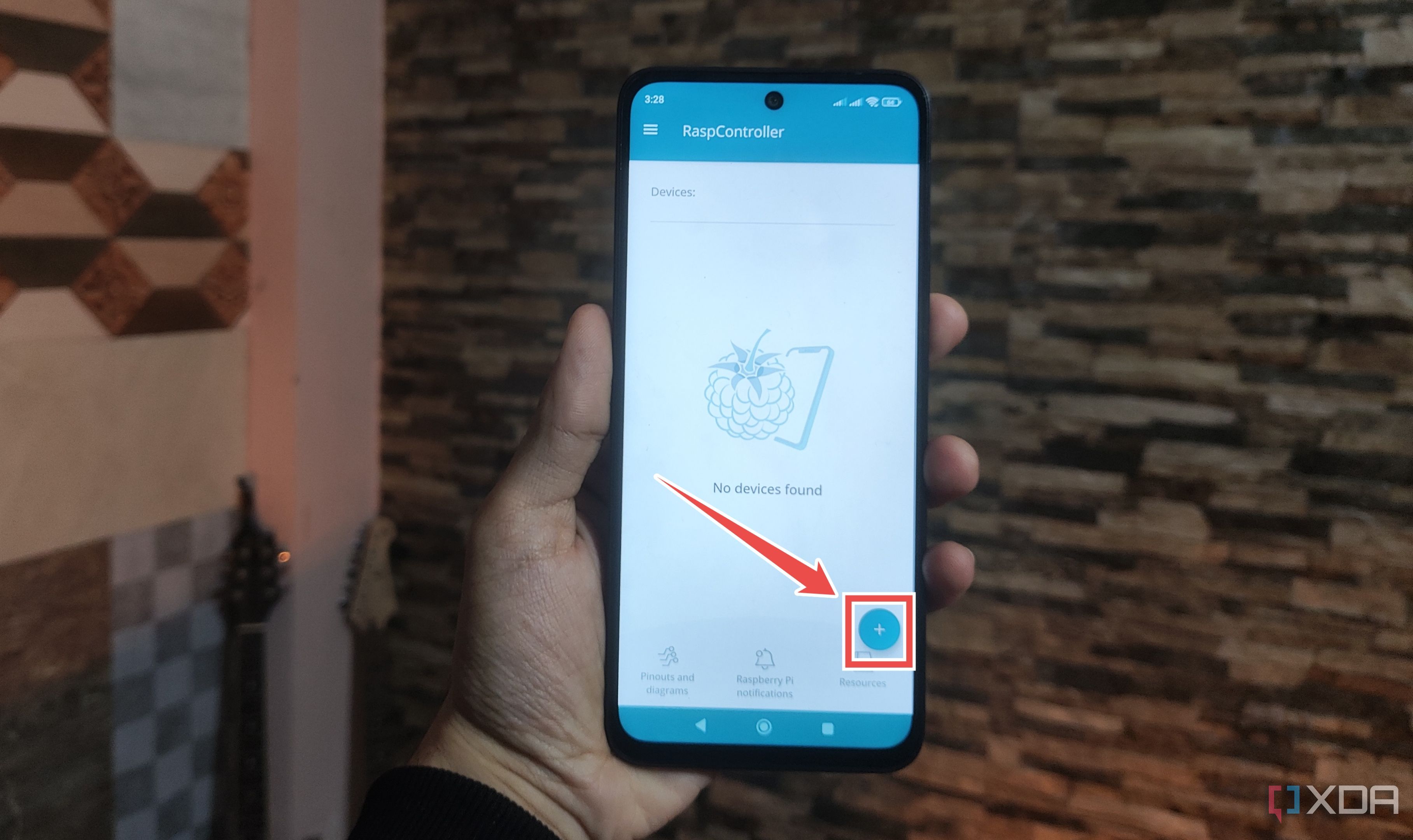
Click on the + icon in the bottom right corner of the screen.
-
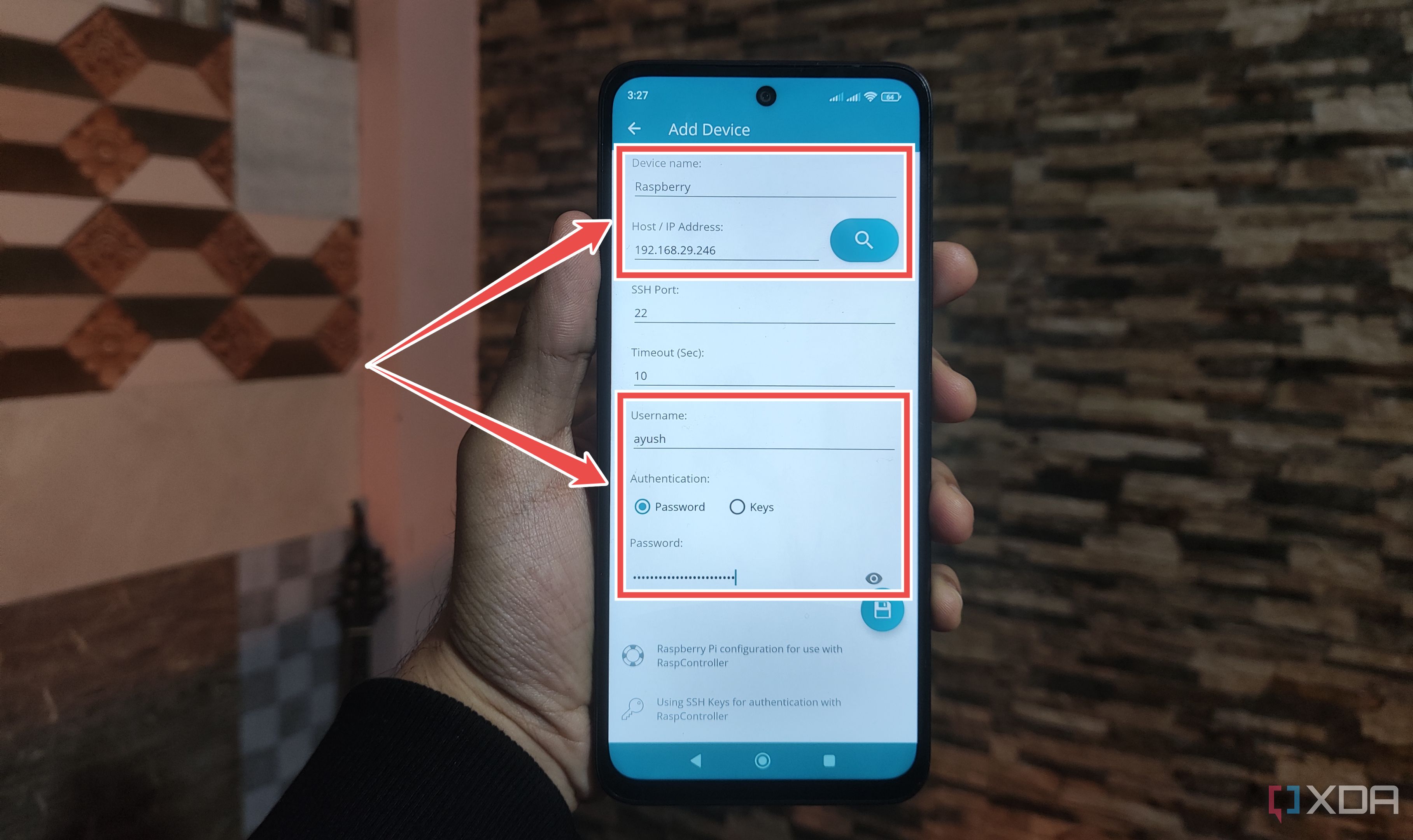
Give the new connection Name, enter its IP address, and type the Username and Password of your Raspberry Pi
.
-
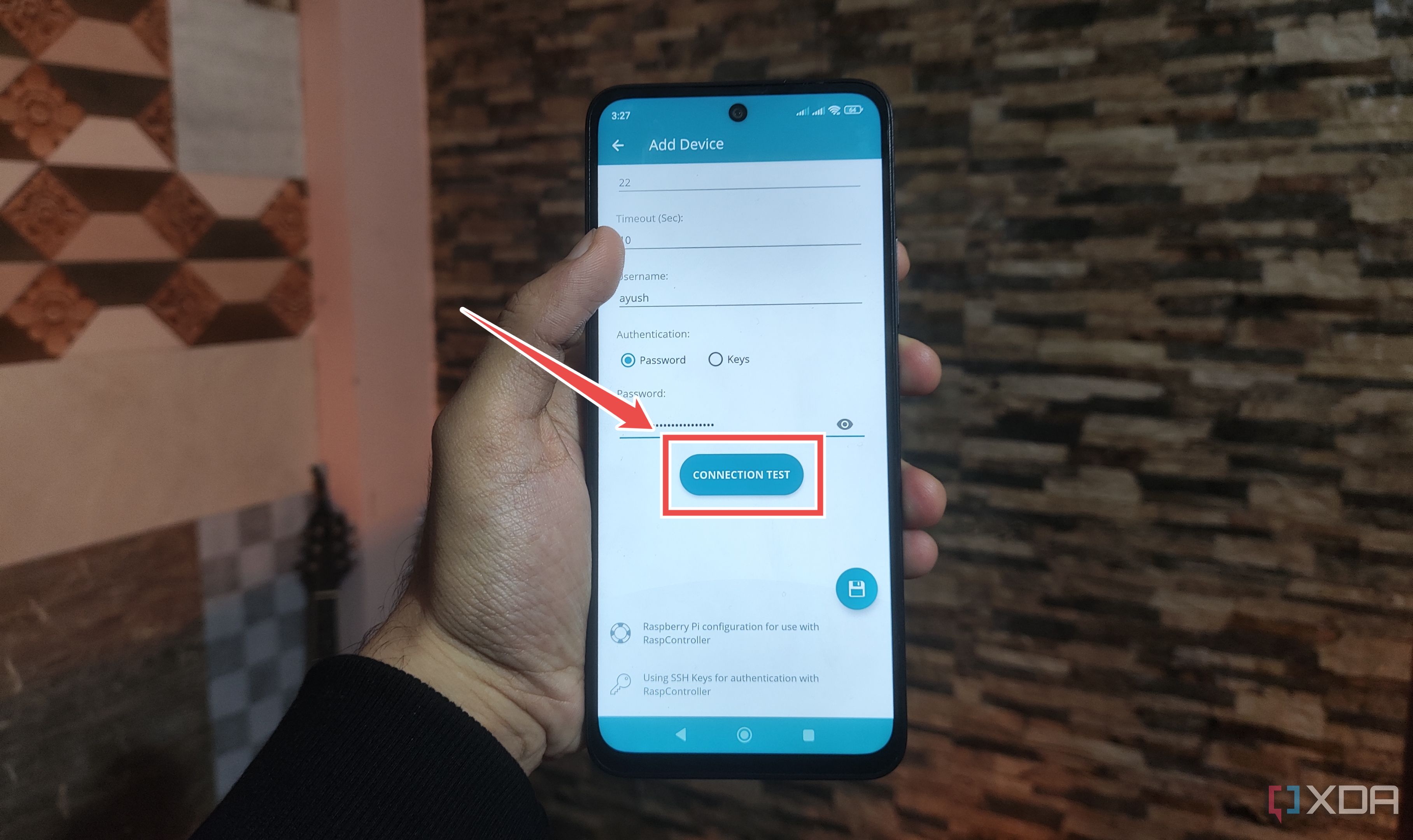
Scroll down and hit Connection Test.
-
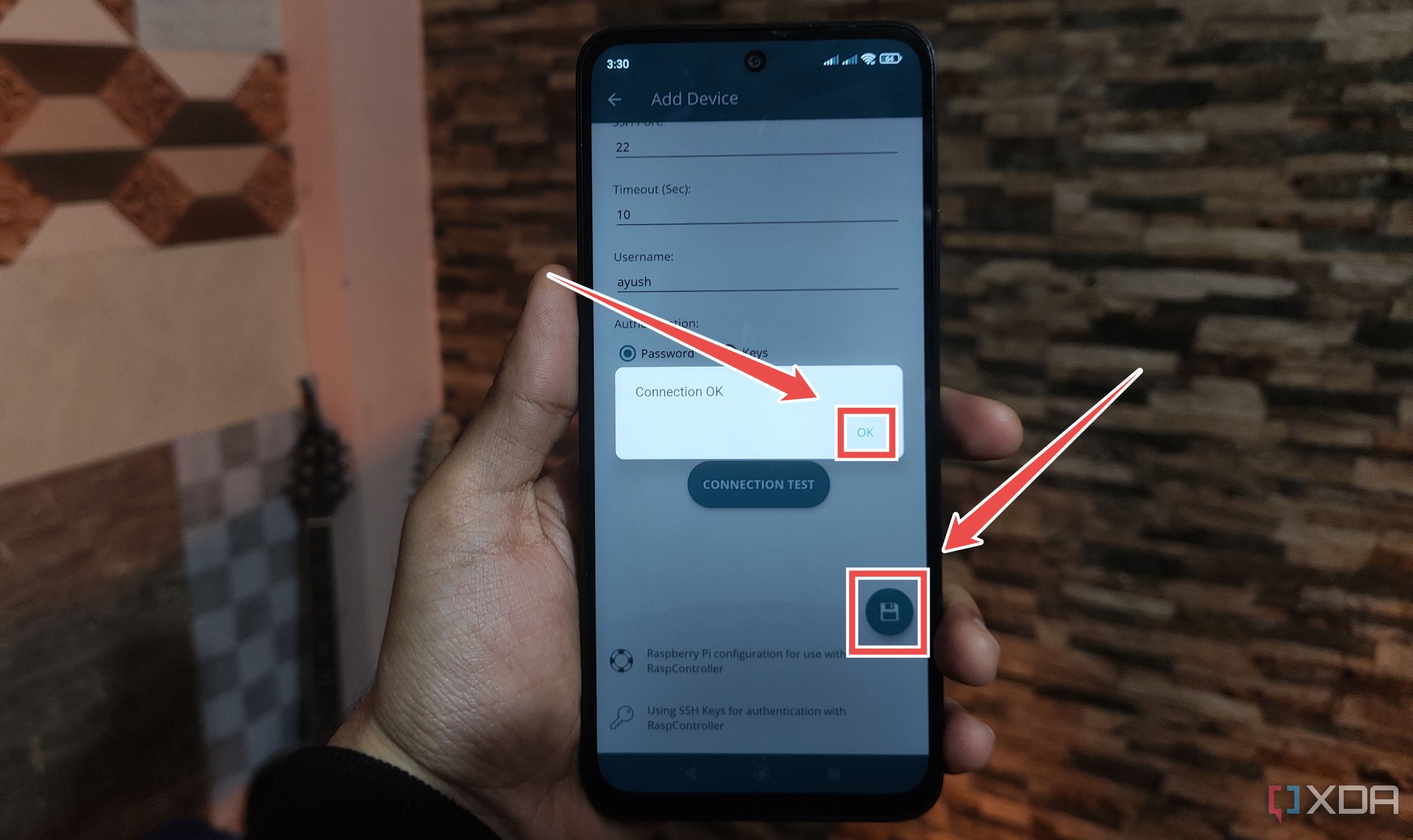
Press OK and tap the Save button.
-
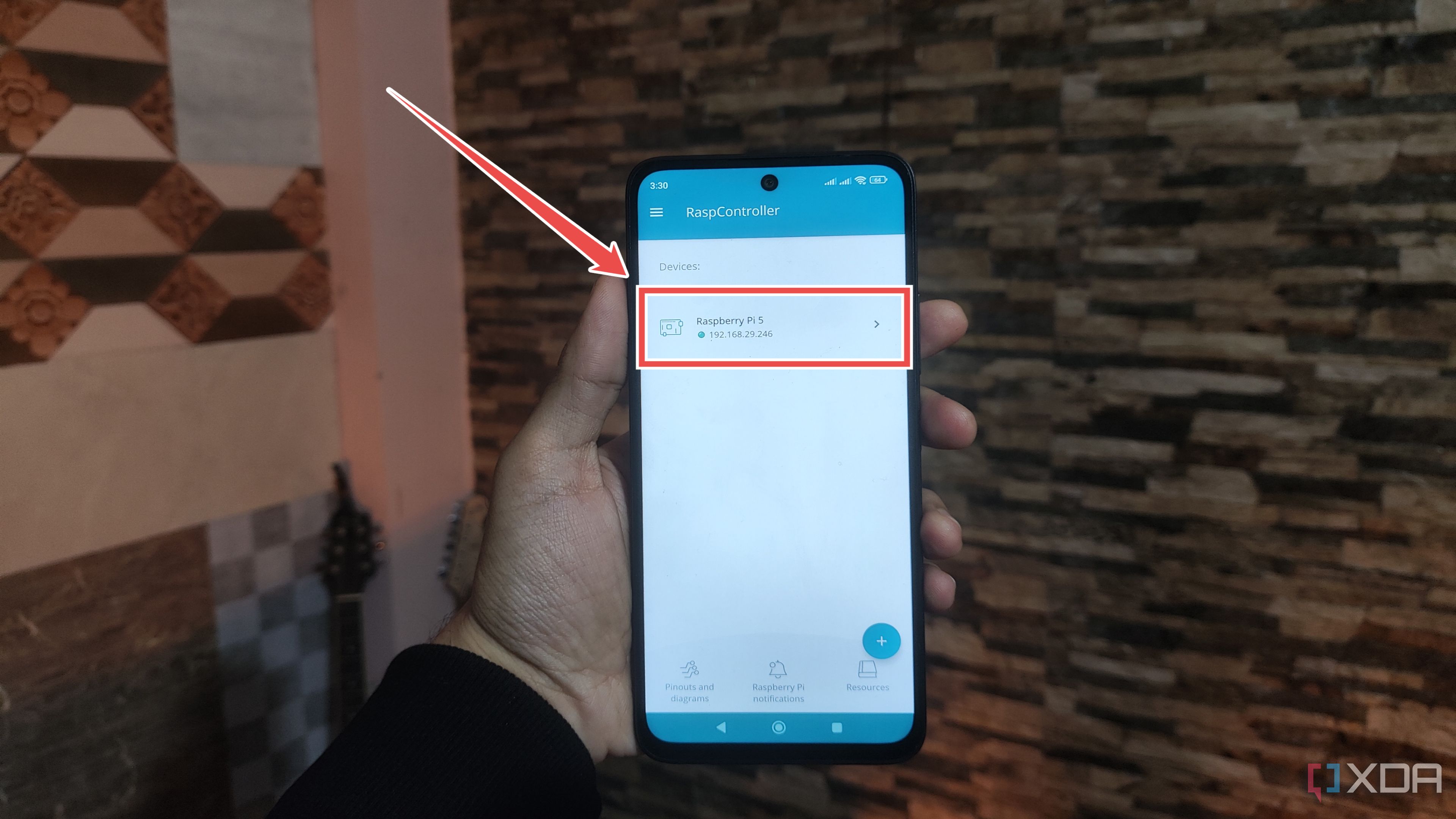
Head back to the RaspConfig home screen and click on your newly added Raspberry Pi connection.
-
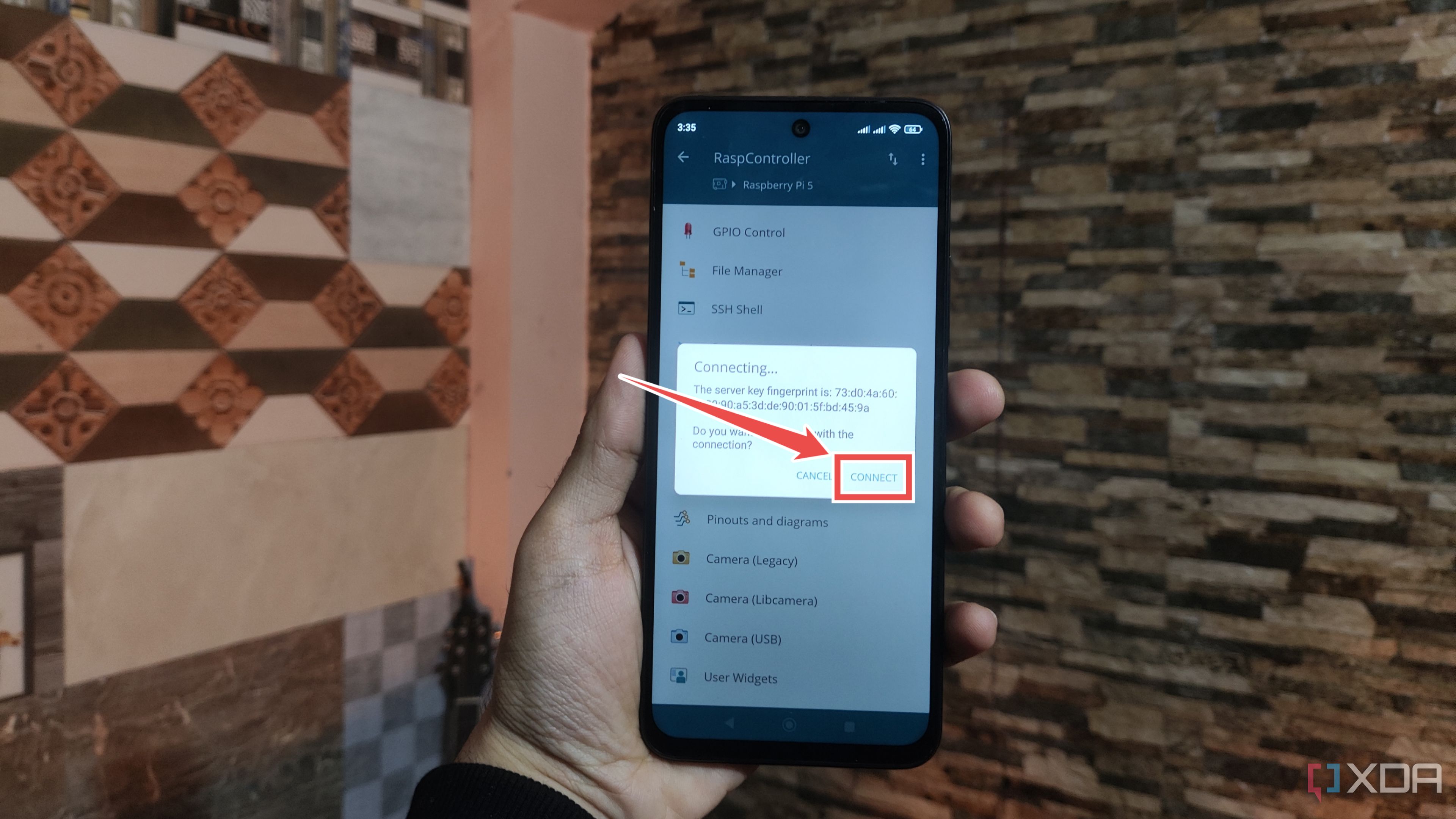
Finally, hit the Connect button to access all the tools available in the app.


Making the most of RaspController

With that, you should be able to control your Raspberry Pi using your smartphone. I tend to use File Manager and SSH Shell when building DIY projects, though the Custom commands are just as helpful when you want to execute frequently run scripts on your Raspberry Pi.
If you’re using a sensor that’s not supported by RaspController, you can add custom code to get it working inside the User Widgets tab. Sadly, RaspController doesn’t include VNC functionality, meaning you’ll have to download RealVNC or a similar app to access the Raspberry Pi GUI from a remote connection.

Related
Turn your Raspberry Pi into a home server with these 5 operating systems
With the right software, even a Raspberry Pi SBC can serve as a home lab
link